Add Realistic Fabric Shading to Any Outfit — Without Painting a Single Stroke
One-time purchase · Instant download access via Patreon
"I spent weeks trying to get my shading to look right with a brush and it never did. This pack literally solved that problem in 5 minutes. My outfits look completely different now."
 RYXORISE
 Photopea (Free)
 Photoshop
 Affinity Designer
 Affinity Photo
 GIMP
GIMP
 Procreate
 Clip Studio Paint
Any software that supports layer blending modes works. The tutorial uses Photopea — it's free, runs in your browser, and you don't need to install anything.
Why do some designers' outfits look like real fabric?
You've seen it. Those Roblox clothing designs that look almost photorealistic — fabric that folds, creases that feel like they follow the body, shadows that sit exactly where light wouldn't reach.
And then you look at your own work and it feels flat. Stiff. Like a painted-on texture instead of real clothing.
So you try what everyone tries: you open a brush tool, pick a dark color, and start painting shadows by hand. You spend an hour. Two hours. It still doesn't look right. The shading is in the wrong place, the edges are too hard, the fabric looks smudged instead of natural.
Here's the thing nobody tells you:
The top designers aren't painting shading by hand. They haven't been for a long time.
They're using overlays. And now, so can you.
Instead of painting, they drop a pre-made wrinkle overlay on top of their clothing layer. Set a blending mode. Adjust the opacity. Use a layer mask to reveal only what they need. Done.
The shading looks hand-painted because these overlays were built from real fabric references — silk, cotton, denim, leather — each with different fold behavior, different crease patterns, different shadow depth.
Five minutes. Looks like hours of brush work. That's the shortcut.
And that shortcut is exactly what we packed into the Ultimate Shading Pack.
We built this pack because we're tired of watching talented designers waste hours trying to replicate something that should take minutes. You shouldn't need years of practice to add professional shading to a design.
- Stop spending hours on shading that still looks flat — make it look right the first time.
- Design faster and take on more commissions without burning out.
- Charge more because your clients can see the difference in quality immediately.
- Use Photopea — it's completely free, runs in your browser, no subscription needed.
Your clients will ask — "How did you make it look so real?!"
Imagine opening a commission, dropping an overlay from the pack, tweaking the opacity, and being done with the shading before you've even finished your coffee. That's what this pack does.
This is the technique the best Roblox clothing designers have been quietly using while everyone else grinds for hours with a brush. And only a small number of people know it exists.
We're sharing it with you now. And we're giving away a limited-time discount so you can get it before the timer runs out.
(You'll be taken to our exclusive Patreon page to access the pack along with our other free exclusive content)
Signed,
— ContrastzDesign, Founder of Roblox Design School
-
Look like a pro without years of brush practice. Drop an overlay, set a blending mode, done. The pack does the hard part — you just customize it to your design.
-
The right shading for every fabric type. Silk wrinkles differently than denim. Cotton creases differently than leather. The pack is organized so you always grab the right overlay for the right material.
-
Works for free. The full tutorial uses Photopea — a free, browser-based editor. No Photoshop subscription required. Open the browser, open your design, drop the overlay.
-
Charge more per outfit. Quality shading is what separates 40-robux commissions from 2,000-robux commissions. Your clients will notice the upgrade on the very first design you do with this pack.
Go from flat design to realistic fabric in under 10 minutes
Open your base outfit in Photopea (free, browser-based). No installation needed — just drag your file in.
Place a wrinkle overlay from the pack on top of your clothing layer. Pick the fabric type that matches — silk, cotton, denim, leather.
Change the layer blending mode to Color Burn and reduce opacity until the shading looks natural. Use Warp to match the fabric's shape.
Use a layer mask to reveal only the shading you need. Add highlights with a soft white brush on Overlay blend. Save as PNG — done.
BOOM — Realistic Shading Done!
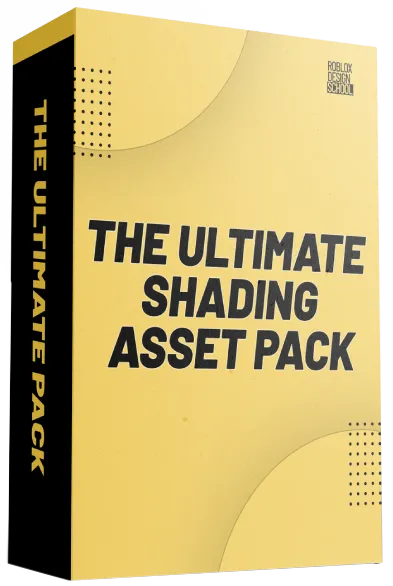
Ultimate Shading Pack
Everything you get inside
Shading and highlight overlays for every fabric type, organized and ready to use in any design software.
- Silk Wrinkle & Shading Overlays $30.00
- Cotton Wrinkle & Shading Overlays $25.00
- Denim Wrinkle & Shading Overlays $20.00
- Leather Wrinkle & Shading Overlays $20.00
- Highlight Overlays (Overlay & Screen modes) $15.00
- Step-by-Step Tutorial Guide $10.99
Support us on Patreon to get access to new shading assets every month
"I never understood how other designers got their clothing to look so realistic. I thought it was all talent and years of practice. Turns out it's this pack. My designs look completely different now."
 PRPZT
PRPZT
"The denim and leather overlays are insane. Dropped them on a jacket design and instantly it looked like something a pro studio made. My clients upgraded their commission prices after seeing the new quality."
RYXORISE